
How to Track Evaluated Rules in FAST with Decision Engine
Overview
With the legacy Rules Engine setup, rule visibility in the FAST message came from PROCESSOR_VALIDATIONS, where fields such as Rules_Checked and Rules_Triggered showed which rules had been checked and which had been triggered.
With Decision Engine, the same kind of visibility can be achieved in a different way: by using a CLIENT action with dynamic attributes.
How It Works
Instead of populating PROCESSOR_VALIDATIONS, Decision Engine can include a client FAST action in the message. By configuring that action with a dynamic rule ID attribute, the FAST message can show which rule was evaluated.
To make this work consistently, the same client action should be attached to both the positive and negative outcomes of the rule. That way, the action is included whenever the rule is evaluated, regardless of whether the outcome is positive or negative.
How To Configure It in Paycontrol
-
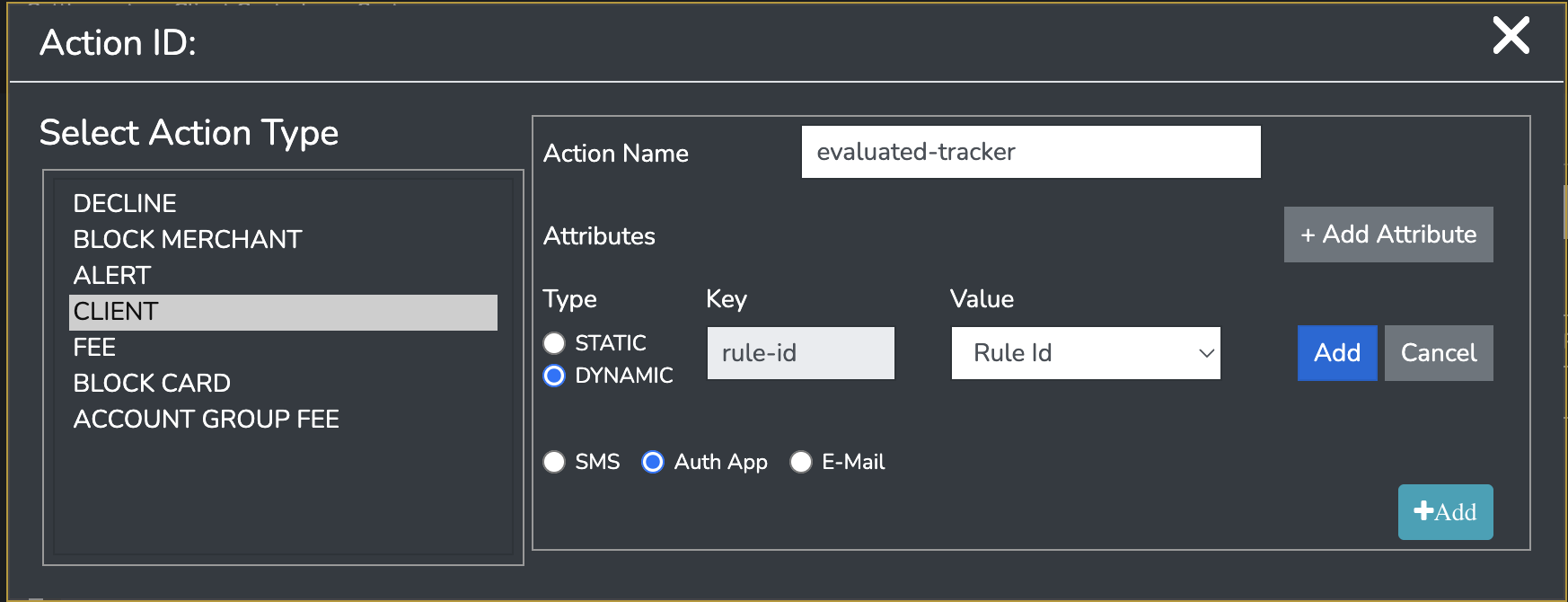
Open Decision Engine Actions in Paycontrol.
-
Create a new action and set the action type to
CLIENT. -
Add an attribute to the action.
-
Set the attribute to
DYNAMIC. -
Configure the attribute so that it carries the rule ID at runtime.
-
Save the action.
-
-
Open the relevant rule in Decision Engine.
-
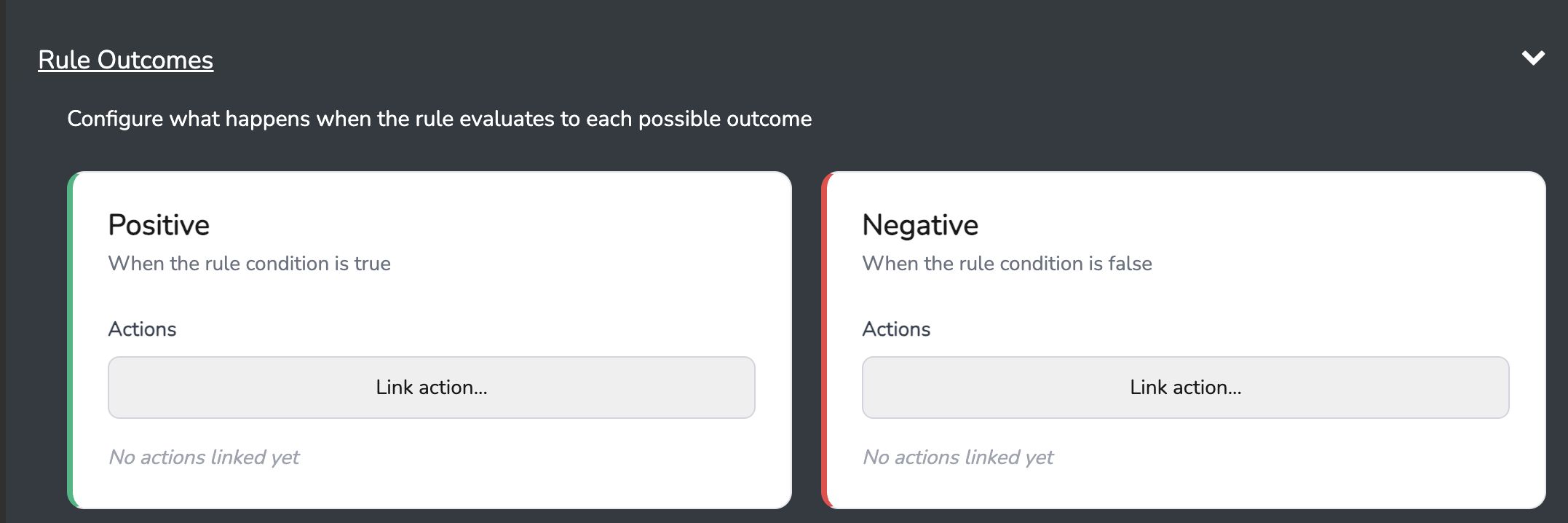
Go to the Rule Outcomes section.
-
Link the same
CLIENTaction to both the Positive and Negative outcomes. -
Save the rule.
-
Result
Once configured, the FAST message will include the client action with the rule identifier whenever that rule is evaluated. This provides rule-level traceability in Decision Engine, similar in purpose to the older Rules_Checked and Rules_Triggered fields from the legacy Rules Engine flow.
Important Note
If the same action is linked to both outcomes, this shows that the rule was evaluated, but it does not by itself show whether the outcome was positive or negative. If outcome-specific visibility is needed, that should be handled separately.
Updated 22 days ago